
SVG Puzzle Piece Generator for Designers & Crafters
Generate free SVG puzzle piece templates for Cricut, Silhouette, Inkscape, and laser cutters. Customize piece count, shape, and connector style.
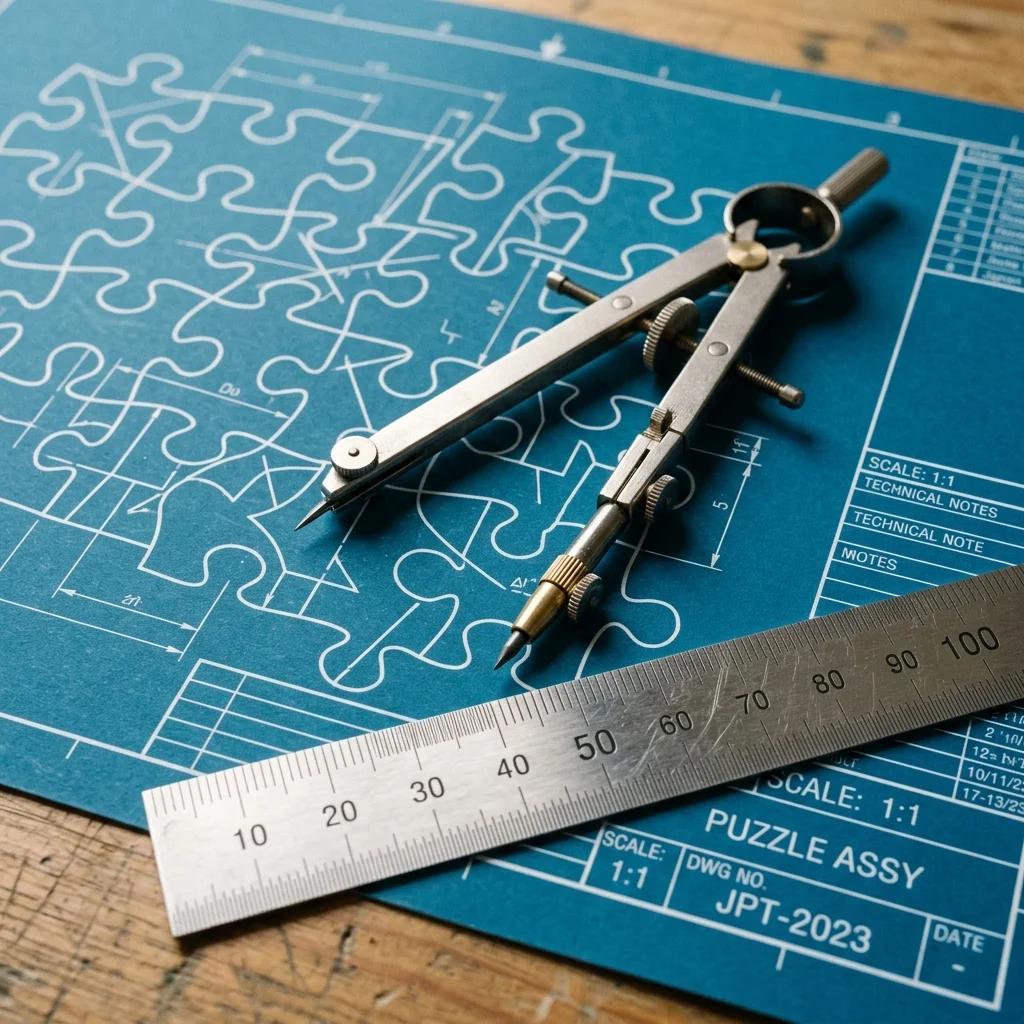
What Is an SVG Puzzle Piece Generator?
An SVG puzzle piece generator creates vector-format puzzle files instead of raster images like PNG or JPG. That distinction matters a lot once you move from screen to physical material.
A PNG puzzle image is a grid of colored pixels. Zoom in past 100% and edges go fuzzy. Scale it up for a 24" poster and the cut lines blur. An SVG file stores geometry — actual coordinates, curves, and paths — so it renders sharply at any size. Print it on a postage stamp or a billboard and the lines stay crisp.
For physical crafts, sharp lines are not optional. A Cricut machine or laser cutter follows the paths in the file precisely. If those paths are blurry or approximate, your cuts will be too. SVG gives cutting machines exact instructions: “cut here, curve like this, connect at that point.” PNG cannot do that.
- Resolution-independent: Perfect lines at any scale, from a 3-inch ornament to a 36-inch wall display.
- Editable in design software: Open in Inkscape or Illustrator and change colors, add text to individual pieces, or adjust connector curves.
- Machine-readable cut paths: Cricut Design Space, Silhouette Studio, LightBurn, and most laser cutter software import SVG directly.
- Small file size: A 100-piece SVG puzzle is typically under 200KB. The same design as a high-res PNG is 10–20x larger.
DXF is the other common vector format you'll encounter. It's the industry standard for CAD and CNC software. We'll cover when to use SVG vs DXF in a dedicated section below.
How to Generate SVG Puzzle Pieces with JigsawMake
The SVG Puzzle Piece Generator on JigsawMake takes about two minutes from start to downloaded file. Here's exactly what each setting does.
Step 1: Set Your Puzzle Dimensions
Enter the width and height of your finished puzzle in millimeters or inches. For a standard letter-size puzzle, use 279 × 216mm (11 × 8.5 inches). For a 12 × 12 inch square project, enter 305 × 305mm. The generator will scale all piece proportions to fit.
Pro tip: If you're cutting from a specific material sheet (like an A4 sheet of chipboard), enter the sheet dimensions minus a 5mm safety margin on each edge. That keeps all cut paths away from the border where material sometimes curls.
Step 2: Choose Your Piece Count
The generator supports 4 pieces up to 500+. The piece count affects both difficulty and the physical size of each individual piece. For a 12 × 12 inch puzzle cut from 65lb cardstock:
- 4–16 pieces: Each piece is large enough to hold comfortably — good for toddler puzzles or oversized wall art elements.
- 20–50 pieces: The sweet spot for most craft projects. Connectors are detailed but still manageable to cut on a Cricut with cardstock.
- 50–100 pieces: Connectors get small fast. Switch to chipboard or wood at this range, and make sure your cutting blade is fresh.
- 100+ pieces: Best suited for laser cutters and rigid materials. Paper crafters should cap at 80–100 pieces for clean results.
Step 3: Pick a Connector Style
Two styles are available. Classic uses round knobs — the interlocking bumps you see on traditional jigsaw puzzles. Easy Cut uses angular, straight-edged connectors. We've tested both on paper crafts extensively, and Easy Cut makes a real difference on cardstock: fewer micro-tears along the curves, cleaner separation when removing pieces from the mat, and less blade wear.
Classic looks more “puzzle-like” and is the right choice for wooden puzzles, foam board, or any project where the traditional silhouette matters. Easy Cut is the practical choice for paper, vinyl, and thin chipboard.
Step 4: Download SVG or DXF
Hit Download and choose your format. SVG for Cricut, Silhouette, Inkscape, or Illustrator. DXF for laser cutter software like LightBurn, RDWorks, or CAD applications. If you're unsure, download both — they're generated from the same paths.
Want to add a photo to your puzzle before cutting? The Photo Puzzle Maker lets you upload an image, have it tiled across the puzzle layout, and download the whole thing as an SVG or print-ready PDF. Useful for personalized gifts where you want the image and the cut lines in a single file.
Using SVG Puzzles with Cricut and Silhouette
Both Cricut and Silhouette machines import SVG natively, but the workflows are different enough that it's worth walking through each one.
Cricut Design Space
In Cricut Design Space, hit “Upload” in the left panel, choose “Complex” as the image type, then hit “Continue” and trace. Design Space picks up every cut path in the SVG automatically — you don't need to manually trace anything. Once uploaded, drag the puzzle onto your canvas.
Two Cricut concepts matter here:
- Attach: Locks multiple layers in position relative to each other so they cut exactly where you placed them on the mat. Use Attach when your puzzle has a background layer (like a printed image) plus a cut layer.
- Flatten: Merges multiple layers into a single printable layer and adds a cut line around the outside. Use Flatten only for Print Then Cut projects where you print on a home printer first, then feed the sheet into the Cricut to cut.
For a plain cut puzzle (no background image), you won't need either. Just select the uploaded SVG and hit “Make It.”
Recommended materials in Design Space: 65lb cardstock for paper puzzles (use the “Medium Cardstock” setting), chipboard for sturdier pieces (use “Chipboard” and slow the speed), kraft board for rustic aesthetics. Vinyl works too — puzzle-shaped vinyl stickers are surprisingly popular for scrapbooking.
Silhouette Studio
The free version of Silhouette Studio handles SVG import fine. You don't need the paid Designer Edition for basic puzzle cuts. Open the SVG via File → Open, and the puzzle cut lines load directly into the workspace as red lines (indicating cut paths).
If cut lines appear as black outlines instead of red cut paths, select all, right-click, and choose “Make Cut Lines.” That converts the visible paths to actual machine instructions.
Silhouette material tip: For cardstock puzzles, set blade depth to 3–4, speed to 5, and run two passes. The connector knobs on Classic-style pieces need that second pass to cut cleanly without tearing. Easy Cut connectors usually cut clean in one pass at blade depth 4.
Scoring Lines for Fold Puzzles
Some puzzle box projects require scoring fold lines before cutting. Both Cricut (with the Scoring Stylus or Scoring Wheel) and Silhouette (with the scoring tool attachment) can add score lines. In Design Space, draw a score line layer in your project and set it to “Score” mode. The machine scores first, then cuts. Clean folds, no tearing.
Editing SVG Puzzle Files in Inkscape or Illustrator
The downloaded SVG is a clean, ungrouped vector file. Every piece is an independent path. That makes it easy to work with in any vector editor.
Working in Inkscape (Free)
Open the SVG in Inkscape (File → Open). You'll see all puzzle pieces as individual path objects in the Objects panel. Select a single piece, then go to Object → Object to Path if you want to edit its individual nodes — useful if you need to reshape a specific connector curve.
To add text to a piece: select the piece, copy it, paste it in place (Edit → Paste in Place), then use the Text tool to type directly on top. Group the text and piece together so they move as one unit.
For engraving layers, create a new Inkscape layer (Layer → Add Layer), name it “Engrave,” and place your artwork there. Keep your cut paths on the “Cut” layer. When you export, laser cutter software reads the layers separately: engrave first, then cut.
Pro tip: Inkscape's “Trace Bitmap” tool (Path → Trace Bitmap) can convert a raster photo into vector artwork that sits cleanly inside each puzzle piece. The result looks like a stylized illustration rather than a photo, which works well for artistic projects.
Working in Adobe Illustrator
Open the SVG via File → Open (not Place). Illustrator imports all paths as a single group. Select it, then Ungroup (Object → Ungroup) twice to get individual piece paths.
To color individual pieces differently: select each path, open the Swatches panel, and apply fills directly. You can build a gradient across the puzzle by assigning progressively lighter shades from one corner to the opposite. Eye-catching, and it only takes about five minutes.
For two-sided puzzles, create two artboards at the same dimensions. Put your first design on Artboard 1 and the second on Artboard 2. Export both as PDFs, print on both sides of your cardstock (or chipboard), and cut. The puzzle pieces interlock the same regardless of which side faces up.
Illustrator + Cricut workflow: Design in Illustrator, export as SVG (File → Save As → SVG), then upload to Design Space. Illustrator preserves path precision better than most other export options, and Design Space reads it cleanly.
SVG vs DXF: Which Format Do You Need?
Both are vector formats. Both store cut paths as geometry rather than pixels. The difference is in which tools read them best.
- SVG is the web standard. Cricut Design Space, Silhouette Studio, Inkscape, Adobe Illustrator, Figma, and most browser-based design tools all import it natively. If you're doing paper crafts, vinyl cutting, or design work, SVG is almost always the right choice.
- DXF (Drawing Exchange Format) is the CAD standard. LightBurn, RDWorks, K40 Whisperer, AutoCAD, and Fusion 360 all use DXF as their native or preferred format. For laser cutters and CNC routers, DXF is typically more reliable — it strips away visual styling and delivers pure geometry, which is exactly what a machine controller needs.
JigsawMake exports both from the same puzzle layout, so you're not choosing between formats — you're downloading whichever one your software expects. We recommend downloading both and keeping them together in your project folder.
One practical note: DXF files do not carry color or fill information. If you've colored individual pieces in Illustrator and want to use those colors as separate engraving passes in your laser software, export as SVG. Most modern laser cutter software (including LightBurn 1.x and later) imports SVG with color layers intact.
For a full walkthrough of laser cutting puzzle files specifically — including material settings for birch plywood, acrylic, and MDF — see the Laser Cut Puzzle Generator Guide.
Creative Project Ideas with SVG Puzzle Pieces
The puzzle format is more flexible than it looks. Here are projects we've seen come out well, with the dimensions that worked.
Wedding Guest Book Puzzle
Cut a 20–30 piece puzzle from 3mm birch plywood at 300 × 400mm. Engrave “Sign a piece, leave a memory” on the front. Set it on a table at the reception with a fine-tip Sharpie. Each guest signs one piece. After the wedding, assemble and frame the signed puzzle. This costs about $8 in materials and reliably gets a stronger reaction than a paper guest book.
Classroom Reward Chart
Cut a 24-piece puzzle from 65lb cardstock at 210 × 297mm (A4 size). Print a motivational image on the back of the uncut sheet first, then cut. Each time a student earns a reward, they add their piece to the classroom display. When the puzzle is complete, the image is revealed. Pieces cost almost nothing to reprint, so you can run this activity throughout the school year.
Oversized Wall Art Pieces
Generate a 6-piece puzzle at 600 × 400mm. Cut each piece from 6mm MDF on a laser cutter, sand the edges, and paint each piece a different color from a coordinated palette. Mount directly to the wall with picture-hanging adhesive. The interlocking pieces create a modular art installation that can be rearranged.
Corporate Team Building Display
Cut one puzzle piece per team member (aim for 20–50 pieces depending on team size) from chipboard at 400 × 300mm total. Each person decorates their piece to represent something about themselves. Assemble the full puzzle at the team meeting or offsite. Frame it for the office wall. The physical assembly is a light metaphor that lands without being heavy-handed.
Scrapbooking Embellishments
Generate a small 6–8 piece puzzle at 100 × 75mm, cut from patterned paper on a Cricut. Use individual pieces as embellishments on scrapbook pages. Ink the edges with a distress ink pad for a vintage look. The interlocking shapes add dimension without requiring a die.
3D Puzzle Box
Cut puzzle piece shapes from 3mm Baltic birch at 80 × 80mm each. Engrave a different design on each piece — numbers, letters, symbols. Arrange them so that solving the puzzle reveals a combination for a small lock box hidden inside. More setup work, but the result is a genuinely interactive gift that doubles as a puzzle and a container.
Connector Styles and Piece Count Guide
The combination of connector style and piece count is the single biggest factor in whether a paper or cardstock puzzle cuts cleanly. Here's how to think about it.
Classic (Round Knobs)
Classic connectors use the traditional rounded tab-and-blank design. They hold pieces together firmly and look like a “real” puzzle. The tradeoff: each rounded curve requires the cutting blade to change direction multiple times in a small area. On paper and thin cardstock, that can mean micro-tears or ragged edges if the blade is slightly dull or the pressure is too high.
Classic is the right choice for wood, acrylic, foam board, thick chipboard (1.5mm+), and any material with enough rigidity that it won't flex during cutting. It's also the better choice aesthetically when the puzzle will be handled and assembled many times.
Easy Cut (Angular Connectors)
Easy Cut replaces the curves with straight-line segments and shallow angles. The blade makes fewer direction changes, and straight cuts are inherently cleaner on fibrous materials like paper and cardstock. We've tested both connector styles on 65lb cardstock and the difference in cut quality is visible: Easy Cut edges are consistently cleaner, with less feathering at the connector tips.
Easy Cut still interlocks securely. The angular connectors hold just as well as round ones for most applications. They don't look quite as traditional, but for functional crafts — classroom activities, scrapbooking embellishments, one-time gifts — that's a worthwhile trade.
Piece Count by Project Type
- Under 20 pieces: Large display projects, toddler puzzles, wall art, guest books. Individual pieces are big enough to handle easily and engrave with text or imagery.
- 20–50 pieces: Standard crafts and gifts. Good for cardstock on a Cricut or Silhouette. Connector size stays manageable. This is where most paper crafters work.
- 50–100 pieces: Detailed work requiring sharper blades and slower cuts. Best on chipboard, thin wood, or with a laser cutter. Paper works but needs careful settings.
- 100+ pieces: Laser cutter or CNC territory. Pieces are too small for most home cutting machines to cut cleanly on paper. Excellent for wooden or acrylic puzzles where the detail is part of the appeal.
A quick rule: if a piece would be smaller than 25 × 25mm at the chosen dimensions and piece count, either increase the puzzle dimensions or reduce the piece count. Connectors smaller than about 6mm wide are hard to cut cleanly on any paper-weight material.
Start Generating Your SVG Puzzle Files
The SVG Puzzle Piece Generator is free to use with no account required. Set your dimensions, pick a piece count, choose Classic or Easy Cut connectors, and download. The whole process takes under two minutes.
If you want a photo tiled across your puzzle layout before cutting, start with the Photo Puzzle Maker instead — it adds the image layer automatically and exports the combined SVG. For a deeper dive into cutting on Glowforge, xTool, or CO2 laser cutters, the laser cutting guide covers material settings and software setup in detail. And if you're new to puzzle making entirely, the complete jigsaw puzzle guide walks through the full process from photo selection to finished product.