
Laser Cut Jigsaw Puzzles: SVG & DXF Guide for Makers
Complete guide to laser cutting custom jigsaw puzzles. Learn materials, software setup, and how to generate SVG and DXF puzzle files for free.
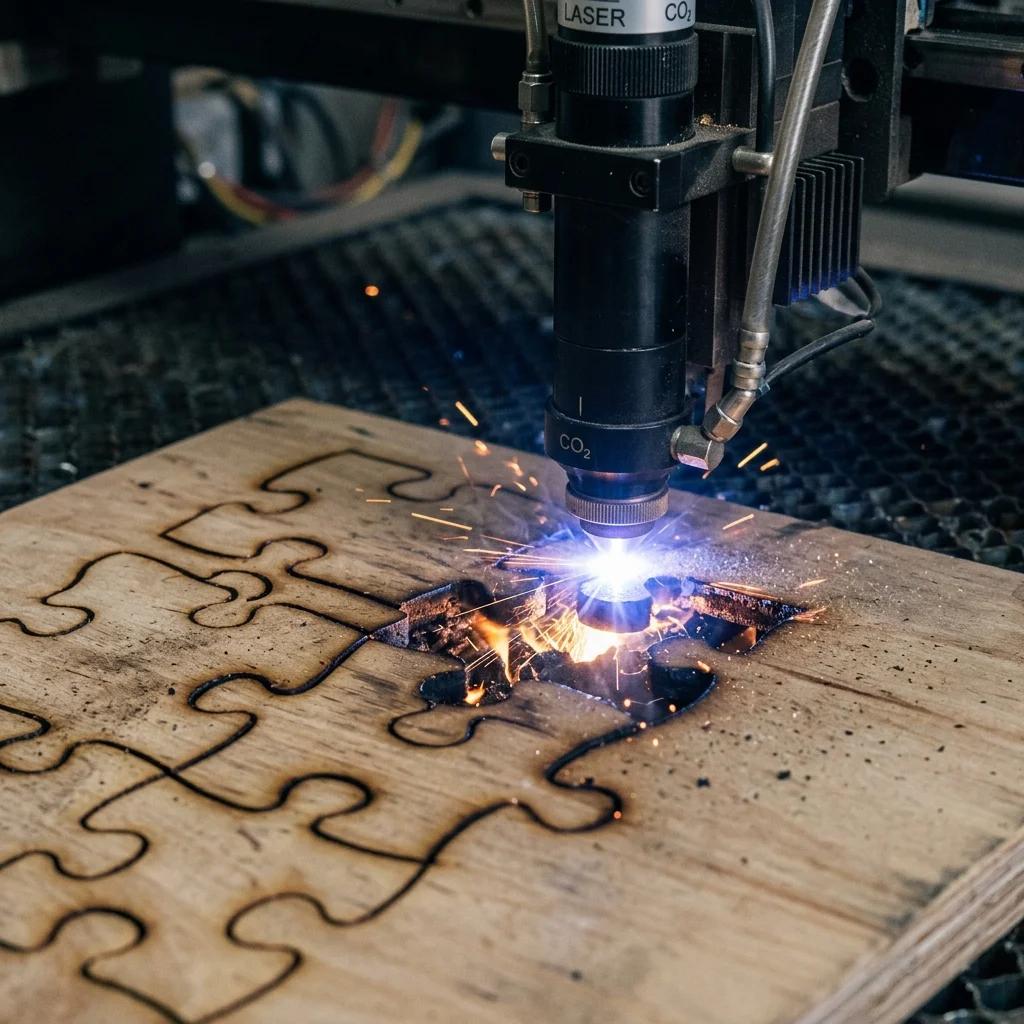
Why Laser Cut Your Own Jigsaw Puzzles?
A commercially made custom jigsaw puzzle — the kind where you upload a photo and get 500 pieces shipped in a box — runs anywhere from $30 to $80. Cut that same puzzle yourself on 3mm birch plywood and your material cost drops to under $5. Once you have access to a laser cutter, the economics flip completely in your favor.
The creative freedom matters just as much as the savings. You choose the piece count, the connector style, the board thickness, and the finish. You can make a 12-piece toddler puzzle or a 48-piece wedding gift. You can engrave a photo directly onto the wood before cutting the pieces. None of that is possible with off-the-shelf services.
- Gift potential: A laser-cut wooden puzzle with a family photo or custom map is a genuinely memorable gift. It looks handmade because it is.
- Classroom use: Teachers cut geography puzzles, anatomy diagrams, and vocabulary tiles at scale for almost nothing.
- Side business: Etsy sellers routinely price custom wooden puzzles at $40–$80. The margins are real.
Best Materials for Laser Cut Puzzles
Material choice is where most beginners make mistakes. The cutting file is almost irrelevant if your material is wrong for the job.
3mm Baltic Birch Plywood (Most Popular)
This is the default choice for a reason. Baltic birch has a tight, consistent grain with minimal voids, which means the tabs and connectors cut cleanly without tearout. The 3mm thickness gives pieces enough rigidity to hold their shape while staying light enough that the puzzle doesn't feel heavy.
- Pros: Clean cuts, holds detail well, takes engraving beautifully, sands easily, paintable and stainable.
- Cons: Slight char on cut edges (easily sanded), can warp if stored in humid conditions, quality varies by supplier.
- Recommended thickness: 3mm for standard puzzles, 6mm if you want a chunkier feel for kids' puzzles.
1/8" Acrylic
Cast acrylic cuts with razor-sharp edges and no char. Transparent or frosted versions look stunning with a backlit display frame. The downside: acrylic is slippery, so pieces don't stay put the way wood does. It also cracks if you force-fit a misaligned piece.
- Pros: Glass-smooth edges, no sanding needed, premium look, available in many colors.
- Cons: Slippery surface, brittle at thin connectors, more expensive than plywood.
- Recommended thickness: 3mm (1/8") minimum. Thinner acrylic snaps at connector tabs.
MDF
Medium-density fiberboard cuts consistently and is cheap, but it absorbs moisture easily and the edges are rough. It's fine for prototyping or one-off interior-use puzzles but not for anything you want to last or look good.
- Pros: Very inexpensive, consistent density, no grain direction issues.
- Cons: Swells in humidity, rough cut edges, heavy, contains formaldehyde (ventilate well when cutting).
- Recommended thickness: 3mm for testing, 6mm for display pieces where durability matters more than weight.
Cardboard & Chipboard
2mm greyboard or mounting board is perfect for making puzzle prototypes fast. It's also what commercial cardboard puzzles use. Cuts quickly at low power, no fumes, no sanding. Just don't expect it to survive more than a few assembly cycles.
- Pros: Ultra cheap, fast cutting, zero prep or finishing required.
- Cons: Not durable, edges compress over time, not suitable for gifts or resale.
Pro Tip: Never cut PVC, vinyl, or anything with chlorine on a CO2 laser. The fumes are corrosive to the machine and toxic to you. If you're unsure what a sheet of plastic is made from, don't cut it.
How to Generate Puzzle Files with JigsawMake
You need a vector file — either SVG or DXF — to run on a laser cutter. Raster images (JPG, PNG) are for engraving, not cutting. JigsawMake generates proper vector cutting paths, which is exactly what your laser software expects.
Step 1: Upload Your Image
Go to the Photo Puzzle Maker and upload your image. For laser-engraved puzzles, higher contrast images work better — think portraits with clear shadows or black-and-white photography. For cut-only puzzles where you're just getting the piece outlines, the image just sets the dimensions, so any photo works.
Step 2: Set Your Dimensions
Match your puzzle dimensions to the actual material you plan to cut. If your plywood sheet is 300mm × 200mm, set the puzzle to those dimensions. This ensures your cut file is 1:1 scale when imported into Lightburn or your cutter's software — no scaling needed.
Step 3: Choose Piece Count
Keep it under 30 pieces for your first cut. This is not a limitation of the generator — it's a practical reality of laser cutting. At 20–30 pieces on a 300mm × 200mm board, each piece is roughly 50–60mm across, giving the connectors enough material to hold. See the piece count section below for a full breakdown.
Step 4: Download SVG or DXF
Use the SVG Puzzle Piece Generator to download your cutting file. SVG works in Lightburn, Inkscape, and Glowforge's app directly. DXF is the better choice for AutoCAD-based workflows or if you're sending the file to a fabrication shop. Both formats export as pure vector paths — no fills, no raster content — ready to run.
Pro Tip: Open the SVG in Inkscape and verify the document dimensions before importing into your laser software. If the document canvas is set to 96dpi (Inkscape's default) instead of the actual physical size, your cuts will come out wrong.
Laser Cutter Software Setup
Getting the file into your laser cutter correctly is where most first-timers waste material. Here's how to handle the three most common software environments.
Lightburn (Most Common)
Lightburn is the standard for hobbyist CO2 and diode lasers. Import your SVG via File → Import, then check the dimensions in the properties panel before running anything. Lightburn will show you the job outline on the workspace — if it looks right at the correct size, you're good.
- 3mm Baltic birch, 40W CO2 laser: 15mm/s speed, 80% power, 1 pass. This is our standard starting point — adjust by ±5% power based on your specific tube's output.
- 3mm Baltic birch, 60W CO2 laser: 20mm/s speed, 65% power, 1 pass.
- 3mm acrylic, 40W CO2 laser: 8mm/s speed, 75% power, 1 pass. Acrylic cuts slower but doesn't need multiple passes if power is right.
- 2mm cardboard, 40W CO2 laser: 30mm/s speed, 40% power, 1 pass.
Always run a small test cut on a scrap piece first. Tube power degrades over time, so these numbers are starting points, not guaranteed settings.
Glowforge
Glowforge's browser interface imports SVG files directly. Upload your file, position it on the bed view, and use Glowforge's Proofgrade settings if you're using their branded materials. For third-party plywood, set the material to Manual and use these as a starting point: Full power, 135 speed for 1/8" non-Proofgrade plywood. Every batch of wood cuts slightly differently, so always run a test cut first.
One limitation to be aware of: the Glowforge app doesn't support DXF. Export as SVG when using Glowforge.
LaserGRBL (Free, Open Source)
LaserGRBL is the free option for GRBL-based diode lasers like the xTool D1, Sculpfun S9, or cheap K40 clones with an upgraded controller board. Import your DXF or SVG, verify the dimensions, and set your feed rate and laser power as S-value (0–1000 on most setups).
- 3mm plywood, diode laser (5W optical): 400mm/min feed rate, S800, 3 passes. Diode lasers need multiple passes for clean plywood cuts.
- 2mm cardboard, diode laser: 600mm/min, S600, 2 passes.
K40 machines (the $300 Chinese CO2 lasers) have inconsistent tube quality. We've found that actual output power varies enormously between units, so treat published settings as a rough guide and always test.
Piece Count and Cutting Tips
Piece count is the most common place people over-engineer their first laser puzzle. Here's the honest breakdown.
- Under 30 pieces: Works great on any material. Pieces are large enough to engrave text or detail onto. Connector tabs are beefy and won't snap. Recommended for first projects and gifts for young kids.
- 30–50 pieces: Doable on 3mm plywood or acrylic. Pieces start getting smaller — around 30–40mm each — so the connectors are narrower. This is where material quality starts to matter. Voids in cheap plywood will cause tabs to snap during assembly.
- 50+ pieces: Gets tricky. On a 300mm × 200mm board, 50 pieces means individual pieces around 25mm across. The connector tabs are only 3–4mm wide at that scale. Anything over 50 pieces on 3mm plywood and you'll start losing tabs — pieces arrive already broken or snap during the first assembly.
Connector Style Matters
Classic interlocking connectors (the standard puzzle-tab shape) work well at larger piece sizes but become fragile below 25mm pieces. For high piece counts, consider a simpler edge geometry — straight-sided pieces that interlock by shape rather than tabs survive better at smaller scales.
Engraving vs. Cutting Passes
If you want the image engraved onto the puzzle surface, run two separate operations: first an engraving pass (raster scan) at lower power over the surface, then a vector cut pass for the piece outlines. Do it in this order — engraving first, cutting second. If you cut first, the pieces shift slightly and your engraved image won't align perfectly with the cut lines.
Pro Tip: Use masking tape on the wood surface before engraving. It catches most of the smoke residue and peels off cleanly after cutting, leaving a much cleaner engraved surface with no scorching around the edges.
Kerf Compensation
Every laser removes a small amount of material as it cuts — called kerf. On a 40W CO2 laser, kerf on 3mm plywood is typically 0.1–0.2mm. This means your cut pieces will be very slightly smaller than the vector path. For most puzzles this doesn't matter, but if your tabs are very tight or very loose, adjusting kerf compensation in Lightburn by ±0.05mm per side will dial it in.
Finishing and Assembly
A freshly cut plywood puzzle has char on the cut edges. Some makers like this look — it gives the puzzle a defined edge. If you prefer clean edges, a light sand with 220-grit paper on the faces and 180-grit on the edges takes the char down in about 10 minutes for a 20-piece puzzle.
Sealants and Surface Finishes
Raw birch plywood is porous and will absorb oils from hands over time. A couple of coats of spray lacquer, wipe-on polyurethane, or even Mod Podge will seal the surface and protect the engraved image. Matte finishes look more natural on wood; satin is a good middle ground.
- Spray lacquer: Fast, even, no brush marks. Apply 2 light coats and let cure 24 hours before handling.
- Wipe-on polyurethane: More durable and water-resistant. Better for puzzles that will be handled frequently.
- Mod Podge: Fine for display pieces but not as durable for puzzles that will be assembled repeatedly.
Box and Frame Ideas for Gifting
The packaging makes a laser-cut puzzle feel like a real product. A few options that work well:
- Wooden keepsake box: Cut a shallow tray from 6mm plywood sized to hold the assembled puzzle. Engrave the recipient's name on the lid. This is the premium option and adds maybe 15 minutes of cut time.
- Muslin bag: Cheap, clean, eco-friendly. A 6" × 8" cotton drawstring bag holds 20–30 puzzle pieces easily and photographs beautifully for Etsy listings.
- Kraft box with window: Standard product boxes from packaging suppliers let you see the assembled puzzle through a clear window. Professional look at low cost.
- Frame display: For keepsake puzzles, cut a backing board from thin plywood and a border frame, then glue the assembled puzzle inside. It becomes a wall hanging.
Pro Tip: Include a small reference card with the assembled puzzle image printed on it. It's the one thing that makes a jigsaw puzzle significantly easier to assemble and costs almost nothing to include.
Ready to Generate Your Cutting File?
Use our free SVG Puzzle Piece Generator to create your cutting file, or try the Photo Puzzle Maker to embed your image into the puzzle before cutting. Both tools export clean vector files sized to your exact dimensions — no scaling needed in your laser software.
New to jigsaw puzzle creation? Our complete jigsaw puzzle guide covers the full process from photo selection to finished puzzle. And if you're evaluating online puzzle tools, read our comparison with Jigidi to see how JigsawMake fits into your workflow.